Learn TUNAI, step by step
From importing a response to choosing a model, tuning a controller, and reading the result. Each section includes examples and guidance on its controls.
From chart image to controller tuning
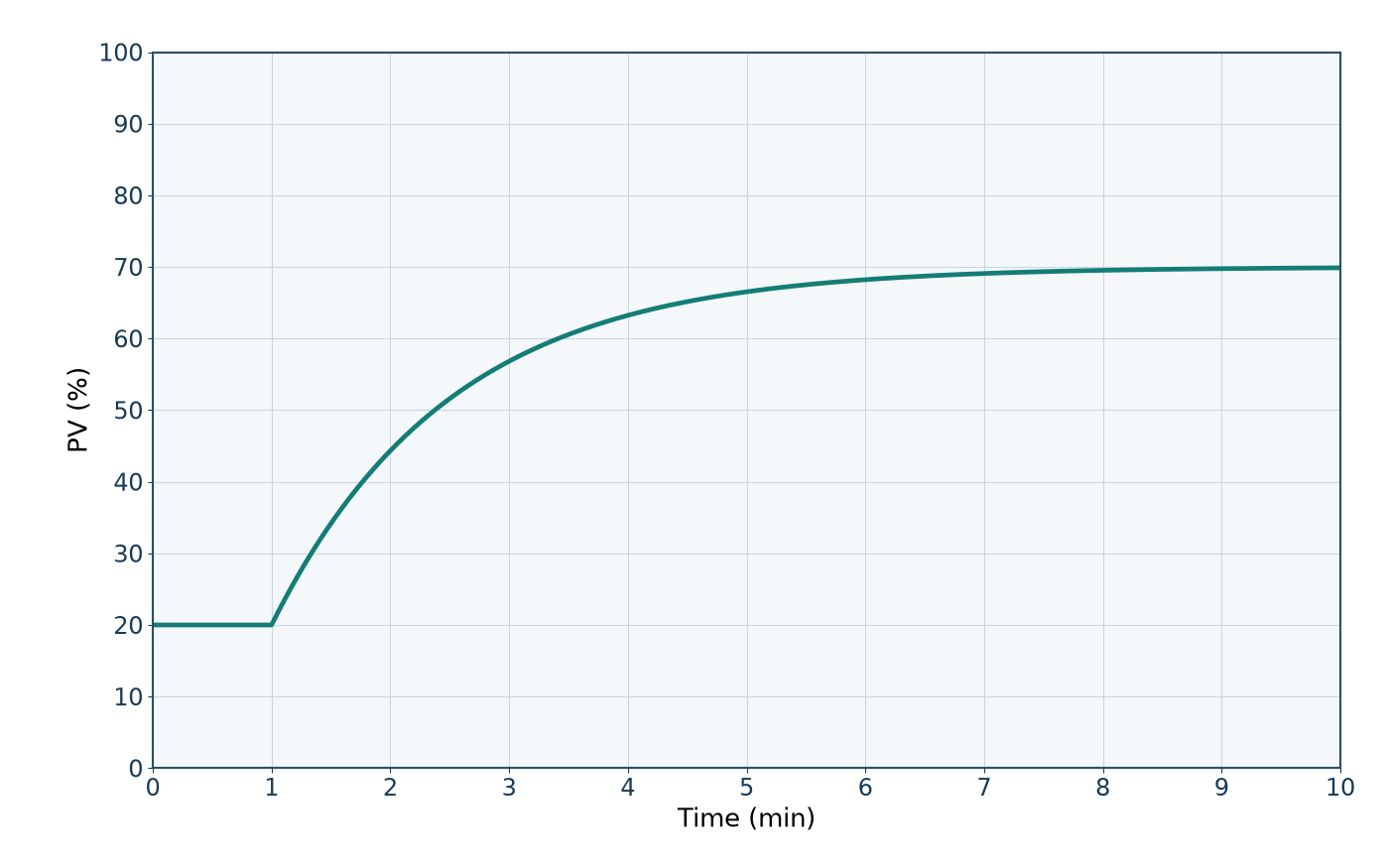
Follow image upload, frame adjustment, axis review, trace confirmation and analysis step by step. Download the example chart to work through it yourself.
Read the steps
- Load the image
Open Auto Analyze, choose Load photo, and select the example chart. Keep its axis labels visible.
- Adjust the frame
Drag frame edges or corners to cover the plot. Reset frame restores the detected area. Zoom and pan help inspect it; Fit image restores the view.
- Pick the curve
Choose Pick curve and click the intended line. Inspect the extracted overlay; it should follow that line and include its beginning and end.
- Review the axes
Compare all four limits with the chart labels. Correct any mismatch. If OCR is unreliable, use detailed OCR or enter the limits manually.
- Confirm the trace
Keep Store trace as on PV for this open-loop example. Choose Use selected trace, then open Reviewed signals and inspect the converted data.
- Configure the test
Check the variable, MV step, calibration and time unit. Review detected behavior and compatible models. Reconfirm the image trace after calibration or time changes.
- Review and run
Open Review Selection. Verify the checklist and source response, choose Run analysis, then confirm Start analysis. Calculation waits are shortened in this tutorial.
- Compare results
Inspect the model equation and fit. Open Controller comparison, compare response curves, and choose Tune this controller on the tuning you want to inspect.
- Tune and evaluate
Drag Kc to see the simulated response change. Evaluate response performs the full check. Here, higher gain increases overshoot; Reset restores the recommendation.
- Export and reopen
Use Export report to keep the result. History reopens saved results; Review saved image restores this chart on the same browser when its local cache is available.
How this guide works
Topics follow the analysis workflow. Use the side navigation or search to find a control, a warning, or an engineering choice. Each topic explains the steps, shows an example, and helps you decide which option fits.